
Configure ad delivery and targeting
Ads define what type of advertising runs, when it plays, where it appears, and who sees it. This is where you configure the core delivery logic for your advertising.
Overview
An Ad belongs to a Campaign and contains one or more Creatives. The Ad configuration determines:
- Ad Type — Sponsorship, Standard, or Network
- Delivery Settings — Goals, dates, and frequency limits
- Placements — Where the ad plays (preroll, midroll, etc.)
- Creative Rotation — How multiple creatives are selected
- Targeting — Which contexts the ad runs in
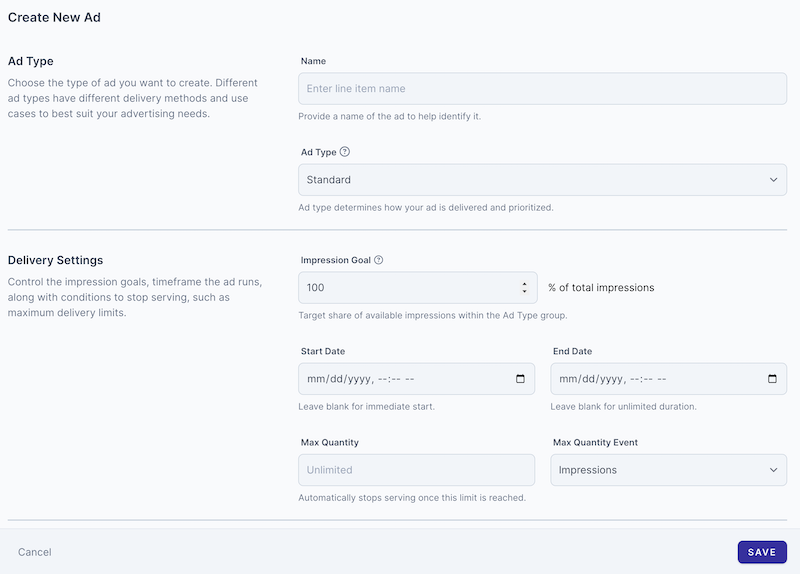
Ad Types
Choose the ad type based on how you've sold the advertising and what delivery guarantees you need to make.
Sponsorship
Priority 1 (Highest)
Guarantees a percentage of all impressions. The ad will play in its configured percentage of all eligible opportunities.
Standard
Priority 2
Guarantees a specific number of impressions. The ad runs until it reaches its goal, paced across the flight dates.
Network
Priority 3
Ads served via external ad servers like Google Ad Manager. Ideal for programmatic demand or centralized ad trafficking.
When to Use Each Type
| Ad Type | Best For | Example |
|---|---|---|
| Sponsorship | Premium sponsors who want consistent presence | "Acme Corp sponsors 50% of all prerolls" |
| Standard | Campaign-based buys with specific impression goals | "Deliver 100,000 impressions over Q4" |
| Network | Centralized ad trafficking or programmatic demand | "Manage all audio ads through Google Ad Manager" |
Delivery Settings
Configure how the ad is delivered over time.
For Sponsorship Ads
| Setting | Description |
|---|---|
| Share of Voice (%) | Percentage of eligible impressions this ad should receive (e.g., 50% means half of all opportunities) |
| Start Date | When the sponsorship begins |
| End Date | When the sponsorship ends (optional—leave blank for ongoing) |
For Standard Ads
| Setting | Description |
|---|---|
| Impression Goal | Total number of impressions to deliver over the flight |
| Start Date | When the campaign begins delivering |
| End Date | When the campaign ends (required for pacing) |
| Max Per Day | Optional daily cap to spread delivery evenly |
Placements
Select where in the audio content this ad can play. You can enable multiple placements for the same ad.
| Placement | Position | Best For |
|---|---|---|
| Preroll | Before main content starts | Highest completion rates. Best for most ads. |
| Preamble | After preroll, before content | Sponsor messages, "brought to you by" spots. |
| Midroll | During content at natural breaks | Longer content (5+ minutes). Higher engagement. |
| Postroll | After content ends | Brand awareness. Lower completion rates. |
Creative Rotation
When an Ad has multiple Creatives, the rotation setting determines which creative plays for each impression.
Rotation Options
| Option | Description |
|---|---|
| Evenly | Each creative gets an equal share of impressions. Use when all creatives are equally important. |
| Weighted | Creatives are selected based on their assigned weights. Use to prioritize certain creatives over others. |
Targeting with Contexts
By default, ads run in all contexts. You can restrict an ad to specific contexts for more precise targeting.
Context Targeting Options
| Option | Description |
|---|---|
| All Contexts | Ad runs everywhere (default) |
| Selected Contexts | Ad only runs in the contexts you select |
| Exclude Contexts | Ad runs everywhere except the contexts you select |
Network Ads
Network ads connect to external ad servers like Google Ad Manager (GAM). Use network ads to centralize your ad trafficking, access programmatic demand, or integrate with your existing ad operations workflow.
Network Configuration
| Setting | Description |
|---|---|
| Network Provider | Select the ad network (e.g., Google Ad Manager, Everlit Network) |
| Ad Unit ID | Your ad unit identifier from the network |
| Custom Parameters | Additional targeting parameters to pass to the network |
How Network Ads Work
- When an ad opportunity arises, sponsorship and standard ads are checked first
- If no direct Everlit ads are eligible, the network ad request is made
- The network returns an ad based on your GAM line items and targeting
- Revenue is tracked and reported in your network dashboard