
Control ad delivery by scenario
Contexts define delivery rules for different scenarios—like mobile apps, premium content, or specific embed locations. Use them to customize the ad experience for different audiences.
Overview
A Context is a set of rules that controls how ads are delivered in a specific scenario. When you embed the Everlit player, you can specify which context to use, and the ad system will apply that context's rules.
Contexts let you create different ad experiences for different situations. For example, you might create a "Premium" context with fewer ads for paid subscribers, or a "Mobile App" context with shorter ads optimized for mobile listening.
When to Create a Context
Create a context when you need different ad behavior in different situations:
By Platform
Different rules for web, mobile app, smart speakers, or other platforms.
By User Tier
Premium subscribers get fewer ads, free users get standard ad load.
By Content Type
News content gets different ad treatment than entertainment or podcasts.
By Embed Location
Your homepage uses different rules than article pages or partner sites.
Context Configuration
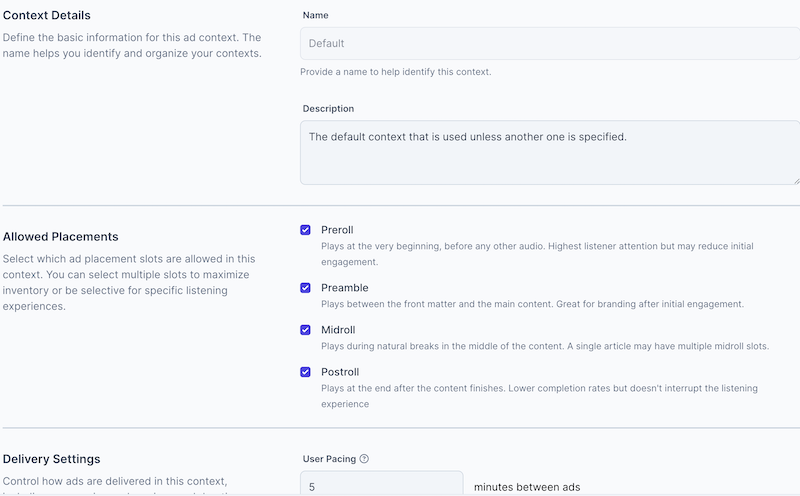
Context Details
| Field | Required | Description |
|---|---|---|
| Name | Yes | A descriptive name for the context (e.g., "Mobile App", "Premium Users", "Partner Sites") |
| Description | No | Optional notes explaining when this context should be used |
Allowed Placements
Control which ad placements are allowed in this context. Disabling a placement means no ads will play in that position, even if ads are targeting it.
| Placement | When It Plays | Common Use |
|---|---|---|
| Preroll | Before the main content starts | Most common placement. High completion rates. |
| Preamble | After preroll, before main content | Sponsor messages or branded content. |
| Midroll | During the content (at natural breaks) | Longer content. May want to disable for short-form. |
| Postroll | After the main content ends | Lower completion rates but good for branding. |
Delivery Settings
Fine-tune how ads are delivered within this context.
User Pacing
Controls how often a user hears ads within a session. Higher pacing means more ads, lower pacing means fewer ads spread further apart.
| Setting | Description |
|---|---|
| Default | Standard ad frequency based on publication settings |
| Reduced | Fewer ads per session (good for premium users) |
| None | No pacing limits (ads play at every opportunity) |
Maximum Ad Length
Set a maximum duration for ads in this context. Ads longer than this limit will be skipped.
Network Ad Settings
Control whether network ads (from Google Ad Manager or other ad servers) can serve in this context.
Network Ad Delivery
When enabled, network ads can serve in this context. This includes ads trafficked through Google Ad Manager, the Everlit Ad Network, or other configured ad servers.
| Setting | Description |
|---|---|
| Enabled | Network ads can serve in this context. Use for standard monetization. |
| Disabled | Only local Everlit ads can serve. Use for premium/ad-lite experiences. |
Using Contexts
Once you've created a context, you can use it in two ways:
1. Target Ads to Contexts
When creating an Ad, you can select which contexts it should target. The ad will only play when that context is active.
2. Specify Context in Player Embed
When embedding the Everlit player, include the context ID to apply that context's rules:
<div
id="everlit-auto-audio-widget"
data-publication-id="YOUR-PUBLICATION-ID"
data-context-id="YOUR-CONTEXT-ID"
></div>